Home page
The home page is the first menu visible on the center display after the car has been started. It displays an illustration of the car, shortcuts to several features and functions, the car's status, and information such as date and time. The top, bottom, and left toolbars are always visible.
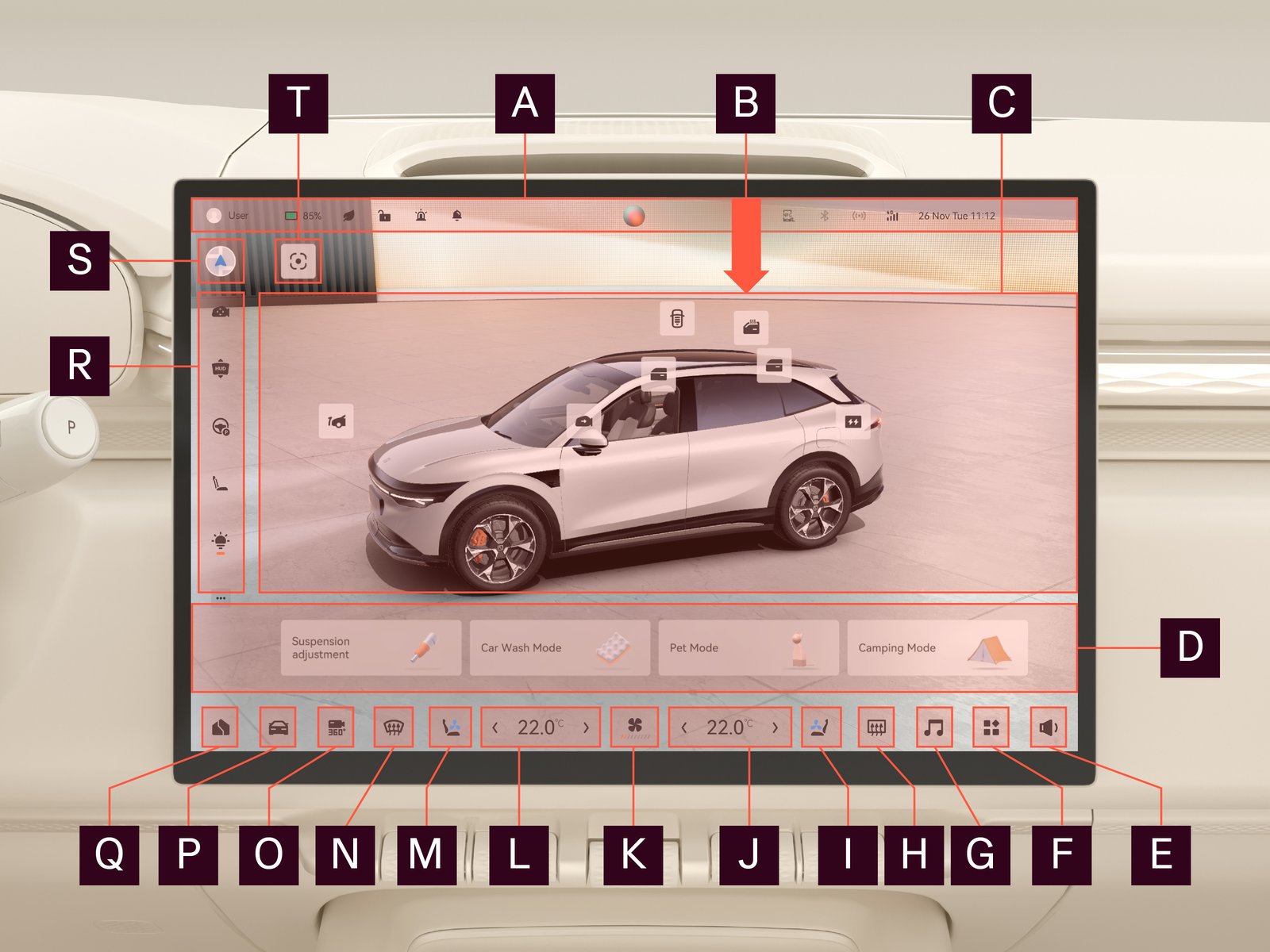
| Function | Description | |

|
Car status display | Displays the current user, temperature, air quality, network connection, and the status of the car. |

|
Swipe-down menu | Swipe down from this area to open the swipe-down menu. |

|
Main overview | Provides access to voice control and quick settings. |

|
Shortcuts to car modes and air suspension adjustment | Press to select car mode or to adjust air suspension. |

|
Sound menu | Press to enter the sound menu. Press and hold to mute all. |

|
Application menu | Press to enter the application menu. |

|
Multimedia menu | Press to enter the multimedia menu. |

|
Rear windshield and side mirrors defog/defrost | Press to activate the rear windshield and side mirrors defog/defrost function. |

|
Passenger seat settings | Press to enter the passenger seat settings interface. |

|
Passenger side air conditioning settings | Press to enter the air conditioning settings interface. Press and hold on to turn on/off the air conditioning. Press the temperature and swipe left/right to adjust the temperature. |

|
Air conditioning fan speed settings | Press to adjust the air conditioning fan speed. Press and hold to turn on/off the air conditioning. Press the fan symbol and swipe left/right to adjust fan speed. |

|
Driver side air conditioning settings | Press to enter the air conditioning settings interface. Press and hold to turn on/off the air conditioning. Press the temperature and swipe left/right to adjust the temperature. |

|
Driver seat settings | Press to enter the driver seat settings interface. |

|
Front windshield defog/defrost | Press to activate the front windshield defog/defrost function. |

|
360° camera | Press to enter the around view monitor interface. |

|
Vehicle function settings | Press to enter the vehicle function settings menu. |

|
Home page/navigation | Press to return to the home page or the navigation app. |

|
Left toolbar | Press to select shortcut. |

|
Home page/navigation | Press to switch between the home page and the navigation app. |

|
View angle | Press to see the car from another angle |
To change the shortcuts in the left control bar:
| 1. |
Press  . .
|
| 2. |
Add/remove shortcuts with the plus/minus or press and hold to move the short cut to the preferred position.
|
We recommend:
Swipe and rotate the car on the home page to access more quick settings.
Swipe and rotate the car on the home page to access more quick settings.