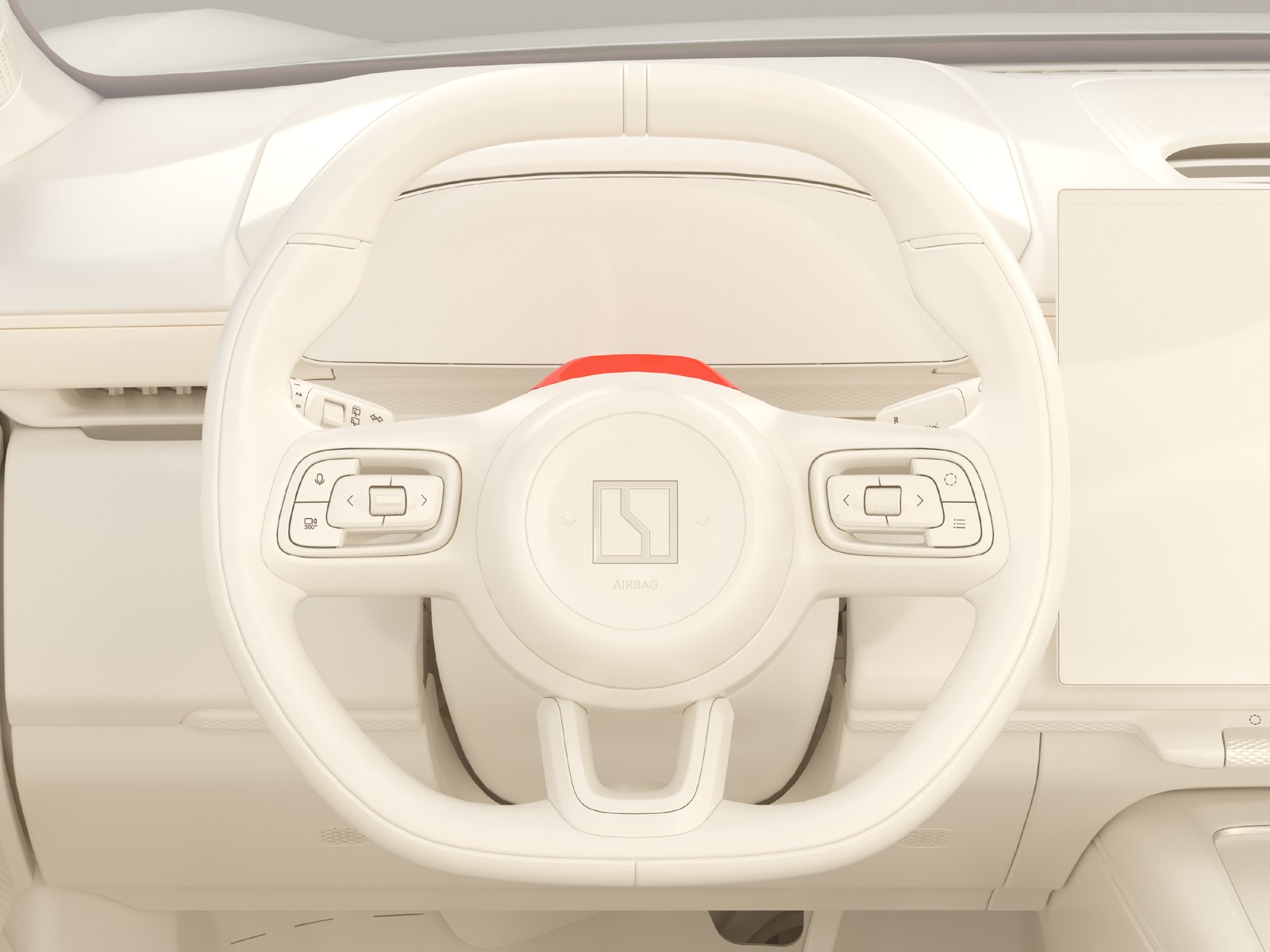
A driver profile enables a personalized driving experience, through storing of settings and preferences. Each user account has a driver profile connected to it. Any services related to your personal information and settings requires logging in to your user account. For more information on user accounts, see
Zeekr user account.
Log in to a driver profile
There are different ways to log in to a driver profile:
|
• |
On the center display, press  |
|
• |
If passwordless login is enabled and you have previously been logged in on the car, there is a list of driver profiles in . |
|
• |
If passwordless login is not enabled, or you are a new user, scan the QR code with the Zeekr app. |
|
• |
If facial recognition login is enabled, and you have registered your face, you are automatically logged in when you sit down in the driver seat, the driver door is closed, and you are recognized by the system. |
|
• |
If digital key login is enabled, you are automatically logged in when you unlock the car with your digital key. |
After logging in, the car automatically adjusts seat, steering wheel, head-up display, and side mirror positions if these settings have been saved by the user.
To enable passwordless login, facial recognition login, and digital key login:
|
1. |
Navigate to .
|
|
2. |
Enable your preferred login method.
|
Facial recognition
A facial scan can be added to the driver profile so that the car can automatically log in to the driver's driver profile and adjust the relevant settings based on who is driving the car.
The driver detection camera is located behind the steering wheel. The camera is equipped with low-light functionality.
Facial recognition login and facial information are activated and added using the center display. To perform any changes to facial recognition settings, you must be logged in to a driver profile and the car must be in P.
To activate/deactivate facial recognition login:
|
1. |
Navigate to .
|
|
2. |
Turn on/off the facial recognition login by pressing Facial recognition auto-login.
|
Note: Facial recognition login can only be turned on/off for the owner of the car. No other user can use the function.
To add facial information:
|
1. |
Make sure the seat is positioned in the same way as when the user is driving the car.
|
|
2. |
Do not wear hats, sunglasses, masks, or other items that cover your face.
|
|
3. |
Navigate to .
|
|
4. |
Next to Face information, press Register.
|
|
5. |
Follow the instructions on the screen to register and connect your face to your driver profile.
|
A message is shown on the center display if the facial registration is successful. If it is not, try again. If there are any issues, contact Zeekr support.
To delete facial information:
|
1. |
Navigate to .
|
|
2. |
Next to Face information, press Delete. |
Limitations of the facial recognition system
The facial recognition system uses the camera on top of the steering wheel to scan and recognize the driver. The steering wheel and seat must be positioned so that the camera can see the driver. If the camera is damaged or obstructed, the system does not function. Additionally, the driver must be clearly visible for the system to function. Sunglasses, hats, masks, or other items that cover the face could prevent the camera from recognizing the driver.
Driver profile preferences
There are a few different ways to add or change driver profile preferences.
Adjust the settings for seating, head-up display, steering wheel, and side mirrors. After adjusting the settings, do any of the following:
|
• |
Navigate to and save the settings there after adjusting them manually. |
|
• |
After pressing one of the seat buttons on the seat, a pop-up window appears on the center display where the settings can be adjusted and saved. |
|
• |
Navigate to  where settings can be both adjusted and saved. See Seat position memory for more information. where settings can be both adjusted and saved. See Seat position memory for more information. |
The system supports up to three saved preferences per account.
User center preferences
After navigating to
, the following functions are available:
|
• |
Renaming a preference or setting it as the default preference. |
|
• |
Saving the current settings to a preference. |
|
• |
Restoring the previous setting. |
Shortcut window preferences
After operating a seat button to open the shortcut window, the following functions are available:
|
• |
Saving the current settings to the current preference. |
|
• |
Saving the current settings to another preference. |
|
• |
Restoring the settings from a saved preference. |